mac m3 포너블 환경 설정

포스트라고 하기엔 대충이지만

  1. UTM 설치
  2. ISO 다운 (필요한 아키텍처로)
  3. UTM에서 가상환경 생성 후 에뮬레이터 로 설치

이러면 이제 엄청나게 느리지만 amd 우분투를 하나 만들 수 있다. 와 잠만 진짜 충격적으로 느리네.
VScode로 ssh 연결되나 함 보자.

vm에 sudo apt-get install openssh-server
응 실패다 dkpg 오류 뜨는데.. 너무 느려서 트러블슈팅 하는 것보다 server로 다시 깔았다. 아예 ssh로만 써야겠다.

참고한 글 : M1M2-환경에서-Pwnable-환경-구성하기

  1. emulator로 ubuntu server 설치
  2. 초기 config 설정
  3. Openssh server 설치
  4. 설치 다 되면 재부팅을 해야함 -> 이때 iso 파일 꺼내기
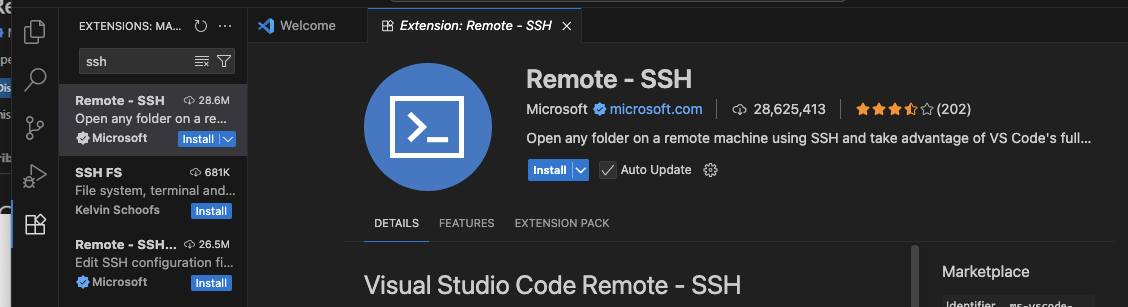
  5. Vscode에 remote ssh extension 설치 익스텐션 설치
  6. 연결~

하면 되는데 우분투 서버 설치가 너무 오래 걸린다.. 다 설치하면 마저 쓰는 걸로

자고 일어나서 다시 실행해보니까 됐다. 포너블 설치할 스크립트 하나 두자

chedahub/pwn_set/blob/main/pwnset20.sh

여기서 코드 가지고 왔다.

#!/bin/bash
export LC_CTYPE=en_US.UTF-8
export LC_ALL=C.UTF-8
source ~/.bashrc

cd ~
sudo apt update -y
sudo apt-get update -y

# vim
sudo apt-get install vim -y

# gdb, gcc
sudo apt-get install gdb -y
sudo apt-get install gcc -y
sudo apt-get install gcc-multilib g++-multilib -y
echo "set disassembly-flavor intel" >> ~/.gdbinit

# netcat
sudo apt-get install netcat -y

# git
sudo apt-get install git -y

# python3, pwntools
sudo apt-get install python3 python3-pip python3-dev libssl-dev libffi-dev build-essential -y
sudo apt-get install libc6-i386 libc6-dbg make -y
python3 -m pip install --upgrade pip
python3 -m pip install --upgrade pwntools
sudo apt-get install libcapstone-dev -y # to rop

# pwndbg
git clone https://github.com/pwndbg/pwndbg
cd pwndbg
./setup.sh
cd ..

# checksec
git clone https://github.com/slimm609/checksec.sh
sudo cp checksec.sh/checksec /usr/local/bin/

# ROPgadget
sudo pip3 install ropgadget

# OneGadget
sudo apt-get install ruby-full -y
sudo gem install one_gadget

# seccomp-tools
sudo gem install seccomp-tools

# pwninit
sudo apt install openssl
sudo apt install pkg-config
sudo apt-get install cargo -y
sudo apt-get install -y liblzma-dev
cargo install pwninit
sudo cp ~/.cargo/bin/pwninit /usr/local/bin/

# visual studio code
sudo apt-get install curl -y
sudo sh -c 'curl https://packages.microsoft.com/keys/microsoft.asc | gpg --dearmor > /etc/apt/trusted.gpg.d/microsoft.gpg'
sudo sh -c 'echo "deb [secarch=amd64] https://packages.microsoft.com/repos/vscode stable main" > /etc/apt/sources.list.d/vscode.list'
sudo apt update
sudo apt install code -y

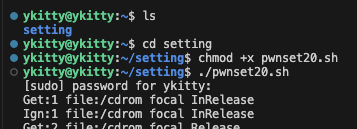
스크립트 실행 이럼 또 한참 걸린다(이런미친)

자 오류가 떴다. 고치자 ㅋ

$sudo rm /var/lib/apt/lists/lock
$sudo rm /var/cache/apt/archives/lock
$sudo rm /var/lib/dpkg/lcok*

$sudo dpkg --configure -a
$sudo apt update

이랬더니 오류 났다. nano로 주석 처리 해야 된대서

sudo nano /etc/apt/sources.list

이러면 nano 창이 뜰 텐데 deb file:/cdrom으로 시작하는 줄을 주석처리를 한다(#으로 처리하면 된다) 이후에 다시 시스템 업데이트를 하자.

sudo apt update
sudo apt upgrade -y

이러고 다시 스크립트 실행 ㄱㄱ

설치는 됐는데 1804도 일단 필요할 거 같아서 얘는 도커로 넣으려고 한다. ‘

https://github.com/superkojiman/pwnbox

이걸로 가지고 왔다.

git clone https://github.com/superkojiman/pwnbox
sudo apt install jq 
sudo ./run.sh my_ctf

하고 열심히 기다리고 다시 또 ip addr 가져와서 ssh 연결해주면 된다.

재접속 및 삭제는 아래

sudo docker start my_ctf && ./my_ctf-attach.sh
sudo ./my_ctf-stop.sh

마크다운 형식이랑 Html 정리

깃블로그에 좀 익숙해질 겸 마크다운과 html 치트시트 하나 만들려고 한다. 본문은 그냥 작성하면 된다.

Header one

제목 1은 # 제목

Header two

제목 2은 ## 제목

Header three

제목 3은 ### 제목

Header four

Header five
Header six

6까지 존재하지만, 그냥 3까지만 활용하는 게 좋을 거 같다.

Blockquotes

Single line blockquote:

한 줄 인용은 > 하나 치고 작성

Multi line blockquote with a cite reference:

여러 줄도 그냥 > 하나 치고 길게 길게 길게 적으면 된다

Steve Jobs — Apple Worldwide Developers’ Conference, 1997

마지막 누가 어디서 말했는지는 < cite> 사용해서 사람 감싸기

Tables

표는 내가 보기에 필요할 때 지피티 돌려서 만들어달라 하는 게 편하긴 하다.

Employee Salary  
John Doe $1 Because that’s all Steve Jobs needed for a salary.
Jane Doe $100K For all the blogging she does.
Fred Bloggs $100M Pictures are worth a thousand words, right? So Jane × 1,000.
Jane Bloggs $100B With hair like that?! Enough said.

위 표에 1행은 (#) 넣어서 링크를 만들었네. 대괄호로 문자열 감싸고 그 옆에 소괄호로 링크 넣으면 첨부된다. 아래는 행마다 정렬이 다르니까 참고 +) 표 위아래 모두 한 줄씩 띄워야 한다.

Header1 Header2 Header3
cell1 cell2 cell3
cell4 cell5 cell6
cell1 cell2 cell3
cell4 cell5 cell6
Foot1 Foot2 Foot3

Definition Lists

Definition List Title
Definition list division.

본문 아랫줄에 : 넣고 작성하면 들여쓰기가 된다.

Unordered Lists (Nested)

  • List item one
  • List item two
  • List item three
  • List item four 리스트는 그냥 참고하자.

Ordered List (Nested)

  1. List item one a. List item one 1. List item one 2. List item two 3. List item three 4. List item four b. List item two c. List item three d. List item four
  2. List item two
  3. List item three
  4. List item four

이것도 그냥 참고. a,b,c,d도 지원하나 해봤는데 안된다.

Address element

1 Infinite Loop
Cupertino, CA 95014
United States

< address> 넣고 주소 작성하면 기울기를 제공해주는데 특별한 건 모르겠다.

This is an example of a link.

오 소괄호 링크 옆에 큰따옴표로 문자열 작성하면 마우스 오버 텍스트 지원한다.

문자 스타일?

word-wrap: break-word; strikeout text italicize inserted keyboard text bold text H2O E = MC2

문자 스타일? 효과를 넣을 수 있다.

코드 작성

.post-title {
    margin: 0 0 5px;
    font-weight: bold;
    font-size: 38px;
    line-height: 1.2;
    and here's a line of some really, really, really, really long text, just to see how the PRE element handles it and to find out how it overflows;
}

< pre>로도 할 수 있는데 맠다 형식으로 작성하는 게 편한 거 같다. 아래 유튜브 추가하는 코드 첨부하면서 맠다 형식 넣었다.

Images

이미지 임베드 중요하지.. 근데 생각해보니까 이거 어느 폴더에 넣지? _screenshots에 넣어야 하나

placeholder placeholder placeholder

유튜브 첨부

<!-- responsive iframe. The framesize reduces proportionately when viewing in mobile -->
<div class="video-container">
  <iframe class="embed-responsive-item" src="..."></iframe>
</div>

이외에 Html로 임베드할 수 있는 요소

Howdy! This is an example blog post that shows several types of HTML content supported in this theme.

맠다 형식과 Html 스타일 비교

  • To bold text, use <strong>.
  • To italicize text, use <em>.
  • Abbreviations, like HTML should use <abbr>, with an optional title attribute for the full phrase.
  • Citations, like — Mark otto, should use <cite>.
  • Deleted text should use <del> and inserted text should use <ins>.
  • Superscript text uses <sup> and subscript text uses <sub>.

여러 코드 임베드 비교

// Example can be run directly in your JavaScript console

// Create a function that takes two arguments and returns the sum of those arguments
var adder = new Function("a", "b", "return a + b");

// Call the function
adder(2, 6);
// > 8
#container {
  float: left;
  margin: 0 -240px 0 0;
  width: 100%;
}
1
2
3
4
5
6
7
8
<nav class="pagination" role="navigation">
  {% if page.previous %}
    <a href="{{ site.url }}{{ page.previous.url }}" class="btn" title="{{ page.previous.title }}">Previous article</a>
  {% endif %}
  {% if page.next %}
    <a href="{{ site.url }}{{ page.next.url }}" class="btn" title="{{ page.next.title }}">Next article</a>
  {% endif %}
</nav><!-- /.pagination -->

여담인데 위 코드는 왜이렇게 어려워.

GitHub Gist embeds can also be used:

<script src="https://gist.github.com/mmistakes/77c68fbb07731a456805a7b473f47841.js"></script>

Which outputs as:

각주

Highlighting does not affect the meaning of the text itself; it is intended only for human readers.1


php-1

file=../uploads/flag.php

위를 입력하면 되는데 flag가 필터링된다

정규식 공부를 해보자 일단 여기에서 쓰인 건 /flag|:/i인데 flag|:는 flag와 : 중에서 하나를 찾는다는 의미이다. i는 대소문자 구분하지 않고 검색한다는 뜻이다 flag, FLAG, Flag 모두 포함

그렇다면 스트링 우회 기법을 써보자 Hex/Ascii Converter

char(0x666c6167) 0x666c6167 %66lag.php

i 옵션 우회는 모르겠고 m 옵션은 개행 대신 ; 써주면 된다고 한다 공백은 $IFS

이 필터링 우회는 view 페이지가 아닌 ?page로 값을 넘겨줘야 한다. ?page=/var/www/uploads/flag.php 가 안되길래 마지막 확장자 제거 Can you see $flag?라고 뜸

LFI 취약점에 대해 더 공부해야 한다. 서버 측 script 언어에서 발생하는 취약점 -> 애플리케이션의 입력 검증 부족 php에서는 include 사용하면 input에 대한 필터링 존재하지 않아서 발생

php wrapper를 활용해서 공격할 수 있다고 함

file:// — Accessing local filesystem
http:// — Accessing HTTP(s) URLs
ftp:// — Accessing FTP(s) URLs
php:// — Accessing various I/O streams
zlib:// — Compression Streams
data:// — Data (RFC 2397)
glob:// — Find pathnames matching pattern
phar:// — PHP Archive
ssh2:// — Secure Shell 2
rar:// — RAR
ogg:// — Audio streams
expect:// — Process Interaction Streams

expect, php://filter/, zip://을 주로 쓴다

  1. expect:// system command 실행시킴
  2. php://filter/ www.[웹사이트주소]/?file=php://filter/convert.base64-encode/resource= 위를 입력하면 인코딩 파일 얻을 수 있음
  3. zip:// zip 파일 압출을 풀고 파일 안 코드 실행시킴

www.[우리가 공격할 웹 사이트의 주소].index.php?page=php://filter/convert.base64-encode/resource=/etc/passwd 이렇게 쓸 수 있다고 함

?page=php://filter/convert.base64-encode/resource= /var/www/uploads/flag.php

CyberChef

Image

simple_sqli

#!/usr/bin/python3
from flask import Flask, request, render_template, g
import sqlite3
import os
import binascii

app = Flask(__name__)
app.secret_key = os.urandom(32)

try:
    FLAG = open('./flag.txt', 'r').read()
except:
    FLAG = '[**FLAG**]'

DATABASE = "database.db"
if os.path.exists(DATABASE) == False:
    db = sqlite3.connect(DATABASE)
    db.execute('create table users(userid char(100), userpassword char(100));')
    db.execute(f'insert into users(userid, userpassword) values ("guest", "guest"), ("admin", "{binascii.hexlify(os.urandom(16)).decode("utf8")}")')
    db.commit()
    db.close()

def get_db():
    db = getattr(g, '_database', None)
    if db is None:
        db = g._database = sqlite3.connect(DATABASE)
    db.row_factory = sqlite3.Row
    return db

def query_db(query, one=True):
    cur = get_db().execute(query)
    rv = cur.fetchall()
    cur.close()
    return (rv[0] if rv else None) if one else rv

@app.teardown_appcontext
def close_connection(exception):
    db = getattr(g, '_database', None)
    if db is not None:
        db.close()

@app.route('/')
def index():
    return render_template('index.html')

@app.route('/login', methods=['GET', 'POST'])
def login():
    if request.method == 'GET':
        return render_template('login.html')
    else:
        userid = request.form.get('userid')
        userpassword = request.form.get('userpassword')
        res = query_db(f'select * from users where userid="{userid}" and userpassword="{userpassword}"')
        if res:
            userid = res[0]
            if userid == 'admin':
                return f'hello {userid} flag is {FLAG}'
            return f'<script>alert("hello {userid}");history.go(-1);</script>'
        return '<script>alert("wrong");history.go(-1);</script>'

app.run(host='0.0.0.0', port=8000)

Image 1

Image 2